


Your iPhone’s IMEI (International Mobile Equipment Identity) and serial number are unique identifiers that serve important purposes, from warranty claims to carrier unlocking and theft reporting. This comprehensive guide will walk you through multiple methods to locate these crucial numbers.
What Are IMEI and Serial Numbers?
IMEI Number: A 15-digit unique identifier for your iPhone’s cellular hardware. It’s used by carriers to identify devices on their networks and is essential for reporting lost or stolen phones, unlocking devices, and verifying warranty status.
Serial Number: A unique alphanumeric code assigned by Apple to identify your specific device. It’s used for warranty claims, service requests, and verifying authenticity.
Method 1: Using the Settings App
This is the quickest and easiest method if your iPhone is accessible and powered on.
Step-by-step instructions:
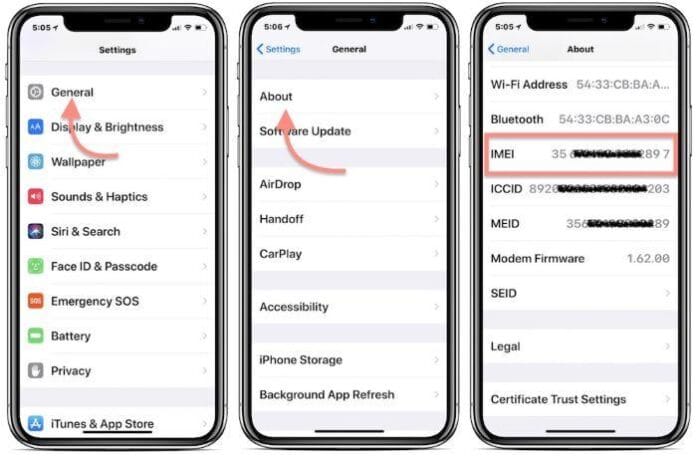
- Open the Settings app on your iPhone
- Tap on General
- Tap on About
- Scroll down to find both numbers:
- Serial Number appears near the top of the list
- IMEI appears further down (you may see IMEI, IMEI2, or Digital SIM)
- Tap and hold on either number to copy it to your clipboard
Note: If you have a dual SIM iPhone, you’ll see two IMEI numbers—one for the physical SIM slot and one for the eSIM.
Method 2: Check the iPhone’s Physical Body
Depending on your iPhone model, the IMEI may be printed on the device itself.
For iPhone 6s and earlier:
- Look on the back of the iPhone near the bottom
- The IMEI is engraved in small print
For iPhone 7 and iPhone 7 Plus:
- Check the SIM card tray
- Remove the tray using a SIM ejector tool
- The IMEI is printed on the tray itself
For iPhone 8 and later:
- The IMEI is not physically marked on most newer models
- You’ll need to use software methods instead
Note: The serial number is typically not printed on the device body for most models.
Method 3: Check the Original Packaging
If you still have your iPhone’s original box, finding these numbers is straightforward.
- Locate the white barcode label on the back or bottom of the box
- Look for the label that includes:
- Serial No.
- IMEI
- Barcode
- The numbers are printed clearly next to their respective labels
This method is particularly useful if your iPhone is lost, stolen, or not powering on.
Method 4: Using iTunes or Finder (Computer Required)
If your iPhone won’t turn on or you can’t access Settings, you can find these numbers through your computer.
For macOS Catalina (10.15) and later:
- Connect your iPhone to your Mac using a cable
- Open Finder
- Select your iPhone from the sidebar
- Click on the General tab
- You’ll see the serial number displayed
- Click on the serial number repeatedly to cycle through IMEI, UDID, and other identifiers
For macOS Mojave (10.14) and earlier, or Windows:
- Connect your iPhone to your computer
- Open iTunes
- Click on the iPhone icon in the upper-left corner
- Click on the Summary tab
- View the serial number under your iPhone’s name
- Click on the serial number to reveal the IMEI and other information
Method 5: Check Your Apple ID Account
You can find your device information through Apple’s website without having the physical device.
- Go to appleid.apple.com and sign in
- Scroll down to the Devices section
- Click on your iPhone from the list
- You’ll see the serial number and other device details
- The IMEI may also be visible depending on the device type
This method is excellent for finding information about devices you no longer have physical access to.
Method 6: Using the Phone App (IMEI Only)
There’s a quick shortcut to display your IMEI using the Phone app.
- Open the Phone app
- Tap on the Keypad tab
- Dial *#06# (star, pound, zero, six, pound)
- Your IMEI number(s) will appear automatically on the screen
This universal code works on virtually all mobile phones, not just iPhones.
Method 7: Check Your Carrier Account
Many cellular carriers store your device information in your account profile.
- Log into your carrier’s website or mobile app
- Navigate to your account or device settings
- Look for device details or device information
- Your IMEI should be listed along with other phone details
This method varies by carrier, but most major providers (AT&T, Verizon, T-Mobile, etc.) make this information readily accessible.
Why You Might Need These Numbers
Understanding when you’ll need your IMEI or serial number can help you prepare in advance:
IMEI is needed for:
- Reporting a lost or stolen device to your carrier
- Unlocking your iPhone to use with different carriers
- Checking if a used iPhone is blacklisted
- Filing insurance claims
- Some carrier activations or network registrations
Serial Number is needed for:
- Checking warranty status with Apple
- Scheduling repairs or service appointments
- Verifying authenticity of your device
- Registering your product with Apple
- Accessing technical support
Tips for Keeping This Information Safe
- Record and store: Write down both numbers and keep them in a secure location separate from your phone
- Take a screenshot: Capture the About screen from Settings and store it in cloud storage
- Email yourself: Send the information to your email for easy access
- Store with receipts: Keep this information with your purchase receipt and warranty documents
- Never share publicly: Don’t post these numbers on social media or public forums
Checking IMEI Status
Once you have your IMEI, you can verify important information about your device:
- Check if blacklisted: Use free IMEI checkers online to see if a device has been reported stolen
- Verify unlock status: Confirm whether your iPhone is locked to a specific carrier
- Check warranty: Some third-party services can provide warranty information using IMEI
What If You Can’t Find the Numbers?
If you’ve exhausted all these methods and still can’t locate your IMEI or serial number:
- Contact Apple Support with proof of purchase
- Check with your carrier—they may have records from when you activated the device
- Review your purchase receipt or invoice, which often includes these details
- Check any insurance documentation or previous service records
Common Issues and Solutions
“My IMEI shows as unavailable”: This can happen with iPads without cellular capability or if there’s a hardware issue. Try restarting your device or updating iOS.
“I see two IMEI numbers”: This is normal for dual-SIM capable iPhones (iPhone XS and later). One IMEI is for the physical SIM slot and one for the eSIM.
“The number on my box doesn’t match my device”: This could indicate the device is not the original one from that box. Verify with Apple using the serial number.
Conclusion
Knowing how to find your iPhone’s IMEI and serial number is essential for every iPhone owner. Whether you need to report a lost device, check warranty coverage, or verify authenticity when buying used, having quick access to these unique identifiers can save significant time and hassle. We recommend recording these numbers in a secure location as soon as you get a new iPhone, so they’re readily available whenever you need them.
Remember, these numbers are unique to your device and should be treated as sensitive information. Only share them with trusted parties like Apple Support, your cellular carrier, or law enforcement if necessary.
Frequently Asked Questions (FAQs)
Q: What is the difference between IMEI and serial number?
A: The IMEI is a 15-digit number specific to your iPhone’s cellular hardware and is used by carriers to identify devices on mobile networks. The serial number is an alphanumeric code assigned by Apple to identify your specific device for warranty and service purposes. Both are unique identifiers, but they serve different functions.
Q: Can I find my IMEI if my iPhone is lost or stolen?
A: Yes. You can find your IMEI through your Apple ID account at appleid.apple.com, on the original iPhone box, in your iTunes/Finder backup information, through your carrier’s account portal, or on any purchase receipts or documentation you kept when buying the phone.
Q: Is it safe to share my IMEI number?
A: You should only share your IMEI with trusted entities like Apple Support, your cellular carrier, law enforcement, or insurance companies when necessary. Avoid posting it publicly online, as scammers can potentially use it for fraudulent activities or to check if your device is valuable.
Q: How many digits is an iPhone IMEI number?
A: An iPhone IMEI number is typically 15 digits long. Some newer iPhones with dual SIM capability will have two IMEI numbers—one for the physical SIM slot and one for the eSIM functionality.
Q: Can two iPhones have the same IMEI?
A: No, each IMEI is globally unique. If you encounter two devices with the same IMEI, one is likely counterfeit or has been tampered with. This is a major red flag when purchasing used devices.
*Q: What does #06# do on iPhone?
A: Dialing *#06# on your iPhone instantly displays your IMEI number(s) on the screen. This is a universal code that works on virtually all mobile phones worldwide, not just iPhones, making it the fastest way to check your IMEI.
Q: Why does my iPhone have two IMEI numbers?
A: iPhones with dual SIM capability (iPhone XS, XR, 11, 12, 13, 14, 15, 16 and later models) have two IMEI numbers—IMEI and IMEI2. One corresponds to the physical nano-SIM slot, and the other corresponds to the eSIM. This allows the phone to connect to two different networks simultaneously.
Q: Can I check if an iPhone is stolen using the IMEI?
A: Yes, you can use free online IMEI checking services to see if a device has been reported lost or stolen and blacklisted by carriers. This is especially useful when buying a used iPhone. However, keep in mind that not all stolen phones are immediately reported or blacklisted.
Q: Where is the IMEI on iPhone 14 or iPhone 15?
A: For iPhone 14, 15, and newer models, the IMEI is not physically printed on the device. You need to find it through Settings > General > About, by dialing *#06#, on the original box, or through your Apple ID account online.
Q: Does my iPad have an IMEI number?
A: Only iPads with cellular capability (Wi-Fi + Cellular models) have IMEI numbers. Wi-Fi-only iPads do not have IMEI numbers because they cannot connect to cellular networks. All iPads have serial numbers regardless of the model.
Q: Can I find my serial number without turning on my iPhone?
A: Yes, you can find the serial number on the original iPhone packaging, through your Apple ID account at appleid.apple.com (if previously registered), in iTunes/Finder if you’ve previously synced the device, or through your carrier’s account information.
Q: Will restoring my iPhone change the IMEI or serial number?
A: No, restoring, resetting, or updating your iPhone will never change the IMEI or serial number. These are permanent hardware identifiers that remain with the device throughout its entire lifespan and cannot be altered through software.
Q: What should I do if my IMEI shows as “unavailable” or “unknown”?
A: This can indicate a hardware issue, particularly with the cellular modem. Try restarting your iPhone, updating to the latest iOS version, or removing and reinserting the SIM card. If the problem persists, contact Apple Support as it may require repair.
Q: Can I unlock my iPhone using the IMEI?
A: The IMEI itself doesn’t unlock your iPhone, but it’s required information when requesting an unlock from your carrier. You’ll need to contact your carrier with your IMEI to request an unlock, provided you meet their eligibility requirements (contract completed, device paid off, etc.).
Q: How do I check my iPhone warranty using the serial number?
A: Go to checkcoverage.apple.com, enter your serial number, and complete the verification. Apple will display your warranty status, coverage expiration date, and whether you’re eligible for technical support.
Q: Is the IMEI the same as the MEID?
A: MEID (Mobile Equipment Identifier) is a 14-digit number used for CDMA devices, while IMEI is used for GSM devices. Modern iPhones typically display an IMEI, though some older models that supported CDMA networks also had MEID numbers. They serve similar purposes but are different identifier systems.
Q: Can someone track my iPhone using the IMEI?
A: Carriers and law enforcement can potentially track a device using its IMEI when it connects to cellular networks, but regular individuals cannot track a phone using just the IMEI number. For personal device tracking, use Apple’s Find My iPhone feature instead.
Q: What happens if I buy an iPhone with a blacklisted IMEI?
A: A blacklisted IMEI means the device has been reported lost or stolen. You won’t be able to activate it on most carriers, making it essentially unusable for cellular service (though Wi-Fi may still work). Always check IMEI status before buying a used iPhone.
Q: Does replacing my iPhone screen change the serial number?
A: No, replacing the screen or any other component does not change the serial number or IMEI. These identifiers are tied to the logic board (motherboard) of the device. Only replacing the entire logic board would change these numbers.
Q: How long are iPhone serial numbers?
A: iPhone serial numbers are typically 10-12 alphanumeric characters long. The format has changed over the years as Apple has modified its serialization system, but they remain unique identifiers for each device.