

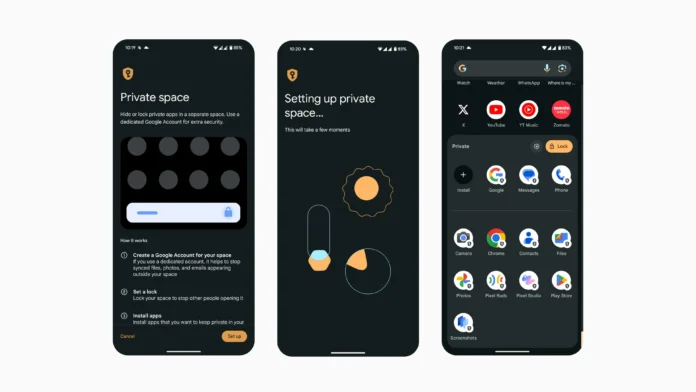

Whether you want to hide banking apps, private photos, or messaging apps, Android offers built-in and third-party solutions to keep your sensitive apps secure. Here’s how to hide apps using Private Space, Secure Folder, and other methods.
🔒 Method 1: Use Built-in Private Space (Samsung, Xiaomi, OnePlus, etc.)
✔ Samsung Secure Folder (Best for Galaxy Phones)
- Open Settings > Biometrics and security > Secure Folder.
- Sign in with your Samsung account and set up a PIN/Password/Fingerprint.
- Tap + Add apps and select apps to hide (e.g., WhatsApp, Gallery).
- Access hidden apps only via Secure Folder.
📌 To hide Secure Folder itself:
- Open Secure Folder > Settings > Hide Secure Folder (it disappears from the app drawer).
✔ Xiaomi/Second Space (Dual Apps & Private Space)
- Go to Settings > Special features > Second Space.
- Set up a new profile with a different password.
- Move sensitive apps here—they won’t appear in the main profile.
✔ OnePlus/Oppo/Realme – Private Safe
- Open Settings > Privacy > Private Safe.
- Set a password/pattern and move files/apps inside.
📂 Method 2: Use Third-Party App Lockers & Launchers
If your phone doesn’t have a built-in Private Space, try these:
✔ Nova Launcher (Hide Apps in App Drawer)
- Install Nova Launcher.
- Long-press home screen > Settings > App Drawer > Hide Apps.
- Select apps to hide.
✔ AppLock by Smart AppLock (Password-Protect Apps)
- Install AppLock.
- Set a PIN/Pattern/Fingerprint lock.
- Choose apps to hide & lock.
✔ Shelter (Isolate Work & Personal Apps – No Root)
- Install Shelter (FOSS).
- Clone apps into a separate encrypted space.
🚫 Method 3: Disable Apps (For Pre-Installed Bloatware)
- Go to Settings > Apps.
- Select the app > Disable (if available).
- The app won’t appear in your app drawer.
⚠️ Not all apps can be disabled—depends on the manufacturer.
🔐 Extra Privacy Tips
✔ Use a private browser (Brave, DuckDuckGo) for hidden bookmarks.
✔ Enable encryption (Settings > Security > Encrypt phone).
✔ Hide notifications (Settings > Notifications > Lock screen > Hide sensitive content).
❓ FAQ: Hiding Apps on Android
1. Can someone find my hidden apps?
✅ No, unless they know your Private Space PIN or check Settings > Apps (if not properly hidden).
2. Does hiding apps stop them from running?
❌ No, they still work in the background unless force-stopped.
3. What’s the most secure method?
🔐 Samsung Secure Folder (hardware-backed encryption) or Shelter (open-source isolation).
🔗 Related Guides
📢 Found this helpful? Share with friends to keep their apps private!
#AndroidPrivacy #HideApps #SecureFolder #TechTips