

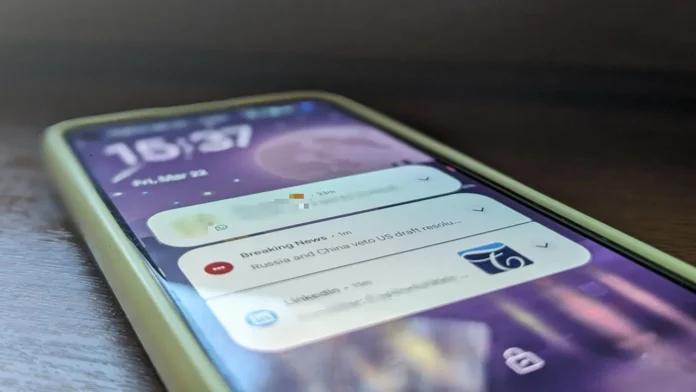

Notifications can be helpful—or annoying. This guide shows you how to control, customize, and prioritize alerts on your Android phone for a cleaner, more organized experience.
🔔 Essential Notification Settings
1. Turn Off Unwanted Notifications
🚫 Stop spammy apps from flooding your lock screen.
How to disable:
- Long-press a notification > Tap Turn off notifications
- Or go to Settings > Apps > [App Name] > Notifications > Toggle off
2. Prioritize Important Alerts
⭐ Mark key apps (Messages, Email) as “Priority” so they always show up.
How to set priority:
- Settings > Notifications > App settings > Select app > Set as Priority
3. Use “Do Not Disturb” Mode
🌙 Silence notifications at night or during work.
How to customize:
- Swipe down > Tap Do Not Disturb (or Settings > Sound > Do Not Disturb)
- Set schedules (e.g., 11 PM – 7 AM)
- Allow exceptions (e.g., calls from Favorites)
4. Hide Sensitive Notifications on Lock Screen
🔐 Keep private messages & emails hidden.
How to enable:
- Settings > Notifications > Lock screen > Choose Hide sensitive content
5. Group Notifications by App
🗂️ Avoid clutter by stacking alerts from the same app.
How to enable:
- Settings > Notifications > Advanced > Notification history > Enable Group by app
⚡ Advanced Notification Controls
6. Change Notification Sounds per App
🎵 Set custom tones for messages, emails, etc.
How to customize:
- Settings > Apps > [App Name] > Notifications > Tap category > Sound
7. Enable “Bubble” Notifications (Like Facebook Messenger)
💬 Floating chat heads for quick replies.
How to turn on:
- Settings > Apps > [Messaging App] > Notifications > Enable Bubbles
8. Snooze Notifications Temporarily
⏸️ Postpone less urgent alerts.
How to snooze:
- Swipe the notification slightly left/right > Tap the clock icon
9. Disable Vibration for Notifications
🔇 Reduce distractions without muting your phone.
How to disable:
- Settings > Sound > Vibration > Turn off Vibrate for calls & notifications
10. Check Notification History (If You Missed an Alert)
⏮️ See dismissed notifications.
How to enable:
- Settings > Notifications > Notification history > Toggle On
📱 Bonus Tips for a Cleaner Notification Panel
✔ Swipe left/right to dismiss individual alerts.
✔ Long-press a notification to adjust settings quickly.
✔ Use “Minimize” to shrink persistent notifications.
🚀 Final Setup Checklist
- Disable spammy apps (Games, Ads).
- Set priority apps (Messages, Email).
- Enable Do Not Disturb for sleep/work.
- Hide sensitive content on the lock screen.
- Customize sounds & bubbles for key apps.
🔗 More Android Guides:
- Best Android Launchers for Customization
- How to Extend Android Battery Life
- Essential Security Settings for Android
📢 Did this help? Share with friends to declutter their notifications!
#AndroidTips #NotificationHacks #PhoneSettings